
SATA Drive and ATA Hard Drive Diagnostic Flowchart
Starting Your Own Computer Business
- Your first sale - A case study
- Business or Hobby
- Buying and selling hardware
- Selling Service
- Computer Franchises
- Home Service Business
- Accounting and Taxes
- PC Customer Service
- Computer Tech Jobs
- PC Warranty Support
Copyright 2021 by Morris Rosenthal
All Rights Reserved
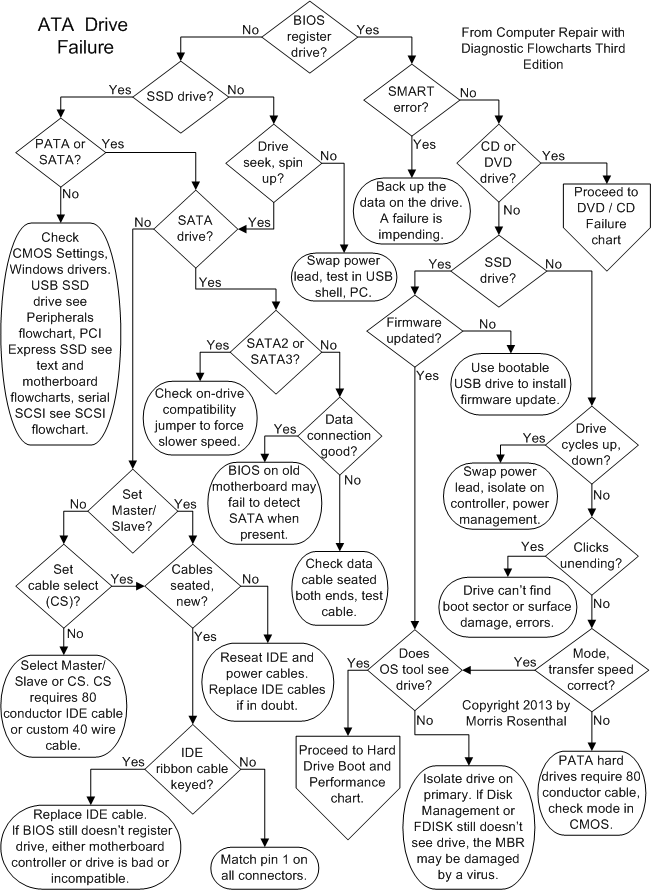
Hard Drive Failure Diagnostics
Note that these steps correspond with decision points on the flowchart and are reached directly by clicking on the diamond symbols. The text below cannot be read sequentially.
Are all installed ATA drives properly identified by the BIOS and displayed on the start-up screen? Any modern PC should be able to identify the drive by model number, brand, capacity, and usually the transfer mode. Some brand name PCs may not display a start-up BIOS registration screen, so you'll have to enter CMOS Setup to view the information. If the key stroke required to enter CMOS Setup isn't displayed on the screen as the PC begins to boot, you'll need to look it up in the documentation or on the Internet. Common keys used to access CMOS Setup at boot are, <DEL>, <F1> and <F2>.
Is it a solid state drive (SSD)? While SSDs with ATA interfaces should look like their mechanical counterparts to the BIOS, they have some distinctive characteristics from the troubleshooting standpoint. Namely, they don't have motors, read/write heads on a moving arm, or spinning discs. So they don't make any noise and they don't resist twisting like a gyroscope. In case of a failed SSD firmware update, power down your PC completely, remove the cord, and let it sit for an hour, then try powering up and down a few more times to see if the drive will appear in the BIOS.
Is the SSD drive equipped with a SATA or PATA (IDE) interface? In terms of cabling issues for power and data, and jumpers for addressing, troubleshooting SSD drives when they are interfaced as PATA or SATA drives is the same as for the magnetic drives. But one of the main failure modes for an SSD drive is simply not showing up in the BIOS. The very next time you power down and power up again, the drive might reappear, but I would take that as an opportunity to back up any important data and return the drive if it's under warranty.
Some SSD drives are sold with a PCIe (PCI Express) interface, but configuring these as the boot drive can be tricky or impossible. If you're just looking for faster boot time, a SATA 3 SSD may make more sense. SSD drives also come with USB and SCSI interfaces, plus a couple more exotic interfaces only used in servers. For the main part, you troubleshoot SSD devices the same way you would any device with the same interface. So for USB SSD, see the general USB troubleshooting guidelines in the Peripherals flowchart and for SCSI SSD see the SCSI flowchart. For PCIe SSD, after reseating the PCIe card, check for known conflicts with the video adapter. Make sure the motherboard PCIe version supports the SSD card, and that the PCIe slot has the full number of lanes (x8, x16). Update the drivers from the manufacturer and check if they require a firmware update.
Does the hard drive spin up? We covered this in the power supply diagnostics, but I'll repeat it here for convenience. When the PC powers up, you should hear the hard drive motor spinning up the drive and the gentle clunking sound of the read/write head seeking. If I can't tell whether or not the drive is spinning up, even with my fingers on the drive's top cover, I run the drive in my hand. A spun up drive resists a slow twisting movement just like a gyroscope. Don't flip it quickly or play with it or you may damage the drive, not to mention touching the circuitry against a conductor and causing a short. Just power down, put the drive back in and continue with the diagnostics.
One of the reasons you should always use four screws in older PATA drives is so you can push hard on the power connector without the unit shifting around and possibly damaging the circuit board. I've never broken a power socket off the circuit board on a hard drive, but I've seen it done, so don't go too crazy on it. Try the hard drive in another PC or a USB shell before you conclude that it's dead.
Most later PATA drives supported Cable Select (CS) which means the pin 28 connection in the cable will determine which drive is Master and which is Slave. New motherboards and drives ship with 80 wire ribbon cables which support cable select and feature the following color coded connectors: Motherboard IDE Connector - Blue, Slave IDE connector (middle connector on cable) - Grey, Master - Black. Cable Select is also supported by custom 40 wire ribbon cables and older drives found in many brand-name systems. The jumpers on both drives should be set to cable select (CS) if you aren't setting one as Master and the other as Slave.
The diagnostic tree splits here between the newer SATA (Serial ATA) interface drives and the older PATA (Parallel ATA) interface drives. PATA drives are often referred to as plain "ATA" or "IDE," the terms refer to the same technology. SATA and PATA drives feature different connectors for both for power and data, so you can't hook the wrong drive up to the wrong interface. On the SATA drives, the power cable is wider than the data cable, on the older PATA or IDE drives, the data cable is a wide ribbon cable and the power cable is an old fashioned Molex 4 wire connector (also used by some early SATA 1 drives).
The initial interface speed for SATA drives was 150 MB/s, also known as SATA 1. The next generation SATA 2 interface supports 300 MB/s and the current SATA 3 peaks around 600 MB/s. Since the "S" in SATA stands for serial, the specification actually describes a bit rate, 1.5 Gbits/s for SATA 1, 3.0 Gbits/s for SATA 2, and 6.0 Gbits/s for SATA 3, but hard drive transfer rates are traditionally described with the more useful MB/s that I use here. If you are replacing an older SATA drive with one from a newer generation and it isn't recognized by the BIOS or won't boot reliably, check if the drive has an onboard compatibility jumper that will slow down the interface for it to work properly with a SATA 1 controller designed for a 150 MB/s peak transfer rate, or a SATA 2 controller designed for a 300 MB/s peak transfer rate.
The SATA interface is pretty bullet-proof in comparison with the older IDE technology, you almost have to work at getting the cabling or jumpers wrong. If the drive powers up but isn't recognized by the BIOS, it's possible that the data cable is bad, or not properly seated on either the drive or the motherboard. If the data cable is known to be good (you saw it work in another system), try attaching it to a different SATA port on the motherboard. Some motherboards offer a completely separate set of SATA connectors for RAID arrays (see hard drive performance). If the motherboard BIOS supports AHCI (Advanced Host Controller Interface) you should enable it, otherwise the SATA drive will end up emulating an IDE drive if it works. If Windows is already installed, see the "Just switched to AHCI?" decision point on the Hard Drive Performance and Boot chart.
Any time two old IDE drives share a single cable, the computer needs a way to tell them apart. This can be accomplished by using jumpers on the drives to set one to "Master" and the other to "Slave" or through selection by the cable. The Master/Slave setting is set by jumpers, usually on the back end of the drive between the power socket and the IDE connector. The labeling for the jumpers is usually in shorthand, "M" for Master and "S" for Slave. Some older drives include a jumper for "Single" (and spelled out labels) for when the drive is the only drive installed on the ribbon. Since pre-SATA motherboards always supported both a primary and a secondary IDE interface, it's not necessary with a two drive system to hang them both on the same cable. The boot hard drive should always be the Master on the primary IDE interface. If the CD, DVD, or any other IDE drive is to share the same cable, it should be set to Slave.
If the drives still don't register properly, make sure the power cable is seated in the drive's power socket, which can take a bit of force. The ribbon cable connectors must also be seated all the way into the IDE port on both the drives and the motherboard, or adapter card if you are using a RAID adapter. The most common reason for a cabling failure of this sort is that the connection was partially dislodged when you were working on something else in the case. Try a new ribbon cable. The most common cable failure is right at the connectors, which can break open if the locks fail. The connectors aren't soldered to the wires, the circuit is made mechanically with "V" shaped contacts forced through the plastic and digging into the conductors.
Are the ribbon cable connectors and the IDE ports on the drives and the motherboard keyed such that the cable can only go one way? Check the pin 1 location on all of the connectors and ports. On IDE drives, pin 1 is traditionally located next to the power socket, but it's not a 100% rule for all time. If the motherboard connector isn't boxed and keyed, it's possible to force the cable on backwards or miss an entire row of pins. The pin 1 location on the motherboard is normally marked with an arrow, a dot, a white square, anything to show one end of the interface as different from the other. If the motherboard won't register any drive you attach, even on new cables, and if those drives are spinning up, it indicates that either the IDE controller is bad or all the drives you've tried are bad. You can try running on the secondary IDE controller if you've only been working with the primary, but the next stop is installing an add-in IDE adapter or replacing the motherboard.
SMART is one of those cute acronyms you don't want to see popping up on your screen with a nasty message. Self-Monitoring, Analysis and Reporting Technology (SMART) is basically a predictor of doom, though it's up to you whether or not to heed it. Because the metrics defined include 87 different signals, from the spin-up time to the read-write error rate, to the drive temperature and vibrations, it's not fully implemented by every drive manufacturer in the same way.
Not all motherboards support SMART reporting, and it may be enabled or disabled in CMOS Setup. Operating system support for SMART is also sketchy, but you can find plenty of free downloadable monitoring tools that will run under any version of Windows and read the SMART information from the drive. If you do get a message warning of impending drive failure from the operating system or from the motherboard BIOS, it pays to back up your data and just replace the drive if you can afford it. Just don't fall for the malware that pretends to issue SMART. warnings!
The troubleshooting procedures for ATA interfaced drives that aren't recognized by the BIOS are identical, whether they are hard drives, CDs, DVDs, tapes or any other ATA device. If the BIOS registers the installed ATA drives correctly and the drive you're having problems with is a CD or DVD, proceed to the CD or DVD Failure diagnostics.
SSD State Drive (SSD) drive? Again, the troubleshooting tree branches for failure issues that affect mechanical drives vs. SSD drives. SSD drives will never spin up and spin down in an unending cycle because they don't spin, ever. Mechanical hard drives almost never require firmware updates, primarily because the operational parameters are fixed and there's not much that can be changed.
Have you updated the firmware for your SSD drive? Unlike mechanical hard drives whose operational parameters are fixed, SSD drives sometimes benefit from new programming, but don't do it unless the manufacturer recommends the update. The SSD firmware controls the relatively high burden of housekeeping tasks that the SSD drive must perform independently of the PC, especially wear leveling and other tasks that will extend the life of the drive. Due to somewhat inconsistent operating system support, a firmware upgrade might be necessary after an automatic Windows update, or for compatibility with a particular high performance application.
Does the drive cycle up and down? Try swapping the power lead for a spare or one used by another drive. For older IDE drives, try isolating the drive on its ribbon cable, even if it means temporarily doing without another drive for the sake of troubleshooting. If neither fix helps, try disconnecting the data cable to ensure that the drive isn't receiving some flaky power down signal from a bad ATA interface or a crazy power management scheme. If it still cycles up and down, the drive is likely toast. Test the drive in another system or a USB shell before labeling it dead.
If you have an old drive that spins up but won't seek (you never hear the head move in and out), it's probably a hardware failure. If you aren't sending the drive out for data recovery, one last ditch effort is tapping lightly with a screwdriver on the cover of the drive, away from the circular section where the platters are spinning. This might encourage a stuck head to get moving. A much debated "dead drive" hack is freezing the drive overnight (double freezer bag and desiccant), which may give you temporary access, before condensation or reheating causes failure. Make sure your backup media is ready if you try any last ditch efforts, because they likely won't work twice.
Does the drive make little clicking noises and fail to get going? The unending soft clicks are caused by the read/write head arm jerking back and forth in a series of seeks as it tries to read data from the platter. It could be that the magnetic coating is damaged, it could be tracking errors, it could be a variety of mechanical failures. Some data recovery technicians report receiving hard drives with randomly tightened cover screws (as a result of people trying to take them apart) which can cause clicking. If you own a quality torque screwdriver, it can't hurt to start on the lowest torque setting and see if some of the screws turn at low torques while others are tight. Restart the PC a couple times, and if you do get it booted, back up your data, run CHKDSK or ScanDisk, and try downloading a free utility that will let you check the drive's SMART report.
If you can't boot and you have data on the drive you want to recover, it always makes sense to try the drive as the second (non-boot) drive in another PC or to install it in a USB shell and hook it to a laptop. If the problem was in the boot sector and the drive indexing is undamaged, you may be able to read off all of your data. If not, you can try a 3rd party data recovery tool or send the drive out for data recovery if it's critical. If you don't mind losing all of the data onboard, you can try FDISKing and reinstalling the operating system again, but seek failures usually indicate the hardware is on its way out.
Does the BIOS report the transfer mode correctly for older PATA drives, like UDMA/100 or ATA/66? UDMA must be enabled in CMOS, or set on "Auto," for high speed transfers. You should never see any level of PIO selected for a hard drive. IDE hard drives manufactured after around 1995 require the 80 wire ribbon cable, at least for high speed operation. You can check CMOS Setup to see if there's a manual override to select the higher speed transfers, though the automatic settings should pick it up. Also try isolating the hard drive as the sole device on the primary controller. If you're adding a new hard drive to an older system, it's possible that the old motherboard and BIOS simply don't support the faster transfer, even with the new cable. I'd be leery of flashing the BIOS to try to get the speed up, even if the motherboard manufacturer supplies it.
Can you access the drive with any generation of Windows Disk Management or FDISK to view partitions? As long as the partition information is intact, the problem is more often malware or OS corruption than magnetic media or electronics failure. If the drive is loud but working, you should maintain up-to-date backups, but it may last for years. If the drive gets too hot, try repositioning it in the case so it can receive greater air flow, or add a case fan to the front of the case.
If Windows is booted on this drive, make sure that the latest device drivers are installed for the motherboard, which include the integrated drive controller. If this is a secondary or external drive, check the drive partition in Disk Management to see whether it is allocated and "Healthy" as opposed to "Raw" and unallocated. For other hard drive issues, proceed to the Hard Drive Boot and Performance troubleshooting flowchart.
Computer Repair | Power Supply | Video Card | Motherboard/CPU/RAM | Hard Drives | CD and DVD | Sound Card | Modems | Networks | Foner Books Home